



Blog: About the WordPress Template Hierarchy (More Posts)
The WordPress Template Hierarchy is the way WordPress differentiates between what Template should be viewed on a given page. By having a hierarchical structure, WordPress is able to determine when to display a catch all template, or a template for a page on your site or when it needs to display a list of your blog posts. To help you understand it all, WordPress provides a useful visual representation of how this system works. Here it is in the Theme Handbook.
Or you can read on below for my exploration of how the Hierarchy is put together. What I wanted to do was I wanted to set up a theme to use as an example to help those like me who have been caught out by the hierarchy many times in their WordPress Development careers.
Template List
The main template files I’ll be explaining here are below
- index.php
- home.php
- page.php
- single.php
- author.php
- archive.php
- front-page.php
In simple terms, when there are no other templates in your theme, index.php is the catch-all template. So I’ll put all my template code into that file for this example.
In order to run these tests, I set up a few pages and functionality to accept menus. There should also be at least 3 WordPress pages and WordPress posts.
  <?php wp_head(); ?>

     <p>index.php </p>

  <?php wp_footer()> ?>
Now that the nuts and bolts of index.php are in place, let’s make sure we have a few things in place to make sure it is recognised as a WordPress theme file. We need functions.php to enqueue the stylesheet and add support for a WordPress menu (more on that in a moment), a screenshot.png file for the WordPress theme directory, and style.css to include the actual stylesheet with the styling you need for your project.
In functions.php add the following code.
<?php
    // Add theme supports
    add_theme_support("menus");

    // Add and Enqueue Theme Assets
    function add_theme_assets() {
        // register styles
        wp_enqueue_style( 'style', get_stylesheet_uri());
    }


    add_action( 'wp_enqueue_scripts', 'add_theme_assets' );
?>
By now you should be seeing the styles in place in your theme, like this.

Now we can start thinking about the Hierarchy. As the image indicates WordPress is picking up the catch-all index.php template. But a website is not a website without pages to link to. We can do that with a WordPress menu. If you happen to be following along with this and you haven’t done so already, make some pages in your WordPress admin area (I called mine Page one, page two, and page three. Each page should be filled with a paragraph or two of text and a level 3 heading for a title.
To access these pages we need a navigation menu, which we can set up in functions.php and place in your index.php template,
    // Register Navigaton Menus
    function main_menu() {
        register_nav_menus( array(
            'primary_menu' => __( 'main_menu', 'template_hierarchy' ),
        ) );
    }

    add_action( 'init', 'main_menu' );
You can then “place” your menu at the desired place in your website. In practice, you should probably do this in a separate header.php template but for this example, I’ve placed it in the header element of my index.php file.
<header>

        <h1>WordPress Template Hierarchy</h1>

        <nav>

            <!-- Main Nav Menu  -->
            <?php wp_nav_menu( array(
                'theme_location'  => 'Primary Menu',
                'menu' => 'main_menu'
                //'orderby' => 'menu_order'
                ) );
            ?>

        </nav>
        ...
Now the navigation menu should be visible on your site. You may have to do into the menus area of your WordPress dashboard and select the location, but once done, the menu as you’ve designed it and styled it will appear on your screen.
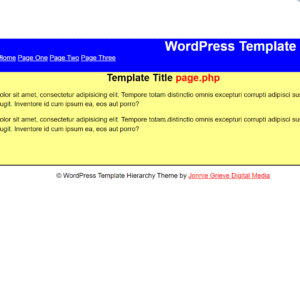
Next, we need a way to list and access WordPress posts that we make in the admin area. To do this we have a choice. We can use a home.php template or a front-page.php template.
The front-page.php file overrides the use of the home.php template if that file exists, and it is used if a WordPress page is selected to be the “front” or the homepage of the site in your WordPress Admin area. If neither is selected the admin area will default to show “your latest posts”.
If the option for “your homepage displays” in the admin area and a “Posts Page” is selected the home.php page is displayed. When you are on the site home page (i.e. not viewing a WordPress page).
The next major template I wanted to talk about was the “single.php” template. When you make a permalink of a list of your posts and you click on one of those links, WordPress will look for the single.php template, as a catch-all for single post pages. And it is from the single.php template you can display the entire text for that post and can derive archive.php and author.php template files.
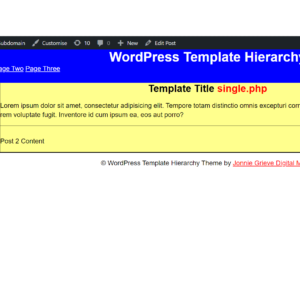
In summary, the hierarchy as discussed in these examples is as follows.
There is the one catch-all template that every WordPress theme needs. which is index.php.
To use templates for WordPress pages you need to use the page.php template which scales back to index.php.
To use templates for WordPress posts you need to use the home.php – the index templates for WordPress posts. Clickable WordPress blog index pages go through to single.php, which then scales back to index.php.
If you need to use front-page.php as your blog/website index rather than home.php, you should select a page to be the homepage in the “Reading settings” of the admin area.
There’s even more to learn about how the WordPress Template hierarchy works with more templates than I have covered in this blog. For example, there are 2 more primary templates for search and 404 pages that I haven’t covered. But once you’ve got a better understanding for the fundamental of the template files I’ve covered and their place in the WordPress Hierarchy, it’ll take you a long way to success in your WordPress projects.
This post has been assigned to the following categories
-
Uncategorised